How to Choose Video Download Quality and Resolution
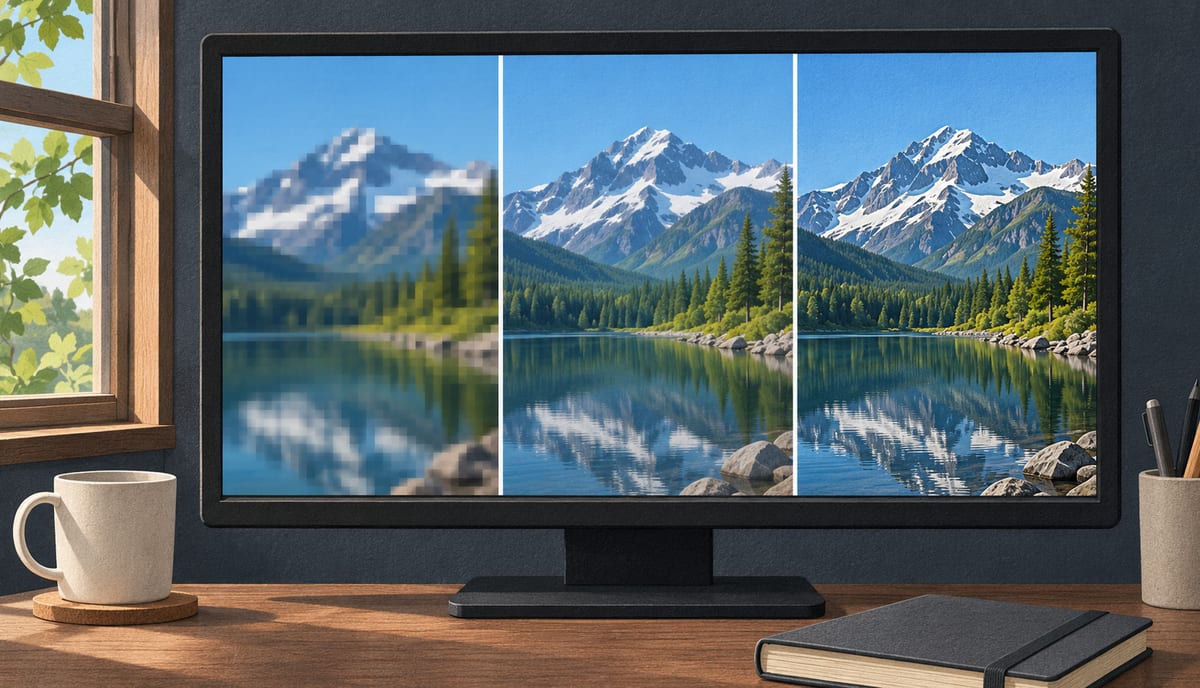
Choose the version that fits the screen you will watch it on, that your device can actually play, and that you can afford to store. Pick the highest resolution only when the screen and the storage justify it. A download tool can only offer what the source provides: it cannot create detail that isn’t in the available versions, so “download in the best quality” really means “download the best version the source offers”.
This article gives you a short way to make that choice and a fallback for when the resolution you wanted isn’t there.
What “quality” is made of
A list of choices such as 1080p, 720p and 480p looks like a quality ladder, but each entry is a bundle of properties. The ones that matter when you compare them:
- Resolution is the pixel dimensions of the picture. More pixels can carry more detail, but only if the source was encoded from material that had it.
- Frame rate is how many frames per second the video samples motion at. A 60 fps version of a fast sports clip looks smoother than a 30 fps one at the same resolution, and is usually larger.
- Bitrate is how much data represents each second. Two versions with the same resolution can look different if one was compressed harder.
- Codec is how the video is compressed. It decides how much space the same picture takes and whether your player can decode it at all. The H.264 vs H.265 guide goes into this.
- Audio is a separate track, and sometimes a separate download, with its own language and channel layout.
Streaming sources make this bundle visible. In HTTP Live Streaming, each version is a “variant” described in the playlist with its bandwidth and, optionally, its resolution, frame rate and codecs, as defined in RFC 8216. The resolution is one attribute among several, and not even a required one. That is why two entries with similar resolution labels can differ in size and in whether they play.
Pick a version in four steps
1. Start from the destination and the constraint
Decide where the file will be played and what limits you. These usually point in different directions:
| If you are mainly limited by | Lean towards |
|---|---|
| A phone or tablet screen | A lower resolution is often enough; extra pixels may be indistinguishable at that size |
| A large monitor or TV | The highest version you can both store and play |
| Storage or upload limits | The smaller estimated size that still looks acceptable |
| Compatibility with an older device or an editor | A widely supported codec over the largest resolution |
| Smooth motion (sports, games, screen action) | A higher frame rate, not only a higher resolution |
2. Compare what the source actually exposes
Look at the options for the specific video instead of assuming a standard ladder. MAX shows quality, frame rate, resolution, codecs, audio channels, tracks and an estimated size for what it finds, so you can compare several versions before you start. The estimate is for planning, since the finished file can differ.
Read the fields together:
- A bigger resolution with a much larger size only pays off if your screen can show the difference.
- A higher frame rate matters for motion, and does little for a talking head or a slideshow.
- An unfamiliar codec is a prompt to check your player before you download the largest file, not after.
Suppose a video offers a 1080p version of about 900 MB and a 720p version of about 450 MB. These figures are made up for illustration, and the sizes vary a lot between videos. If the destination is a phone and the video is mostly talking, the 720p file likely costs half the storage for little visible loss. If the destination is a TV and the 1080p version uses a codec the TV supports, the larger file is the better choice. The numbers don’t decide it, the device does.
3. Choose a sensible fallback when your target is missing
Sources don’t promise every resolution. If you wanted 1080p and the video tops out at 720p, you have these choices:
- Take the nearest version that still meets the real need. For a phone, 720p may be all you needed anyway.
- Check whether the publisher offers a larger version. The original site or the publisher’s own download option may carry a higher-quality file than a copy elsewhere. This is occasionally true, not something to expect: many pages serve the same renditions wherever the video is embedded.
- Don’t try to rebuild it. Upscaling stretches existing pixels. It changes the pixel count, not the detail that was never captured.
Selecting a higher number than the source has is not an option the source gives you, so there is nothing to select. A tool that appears to offer it is resizing, not downloading a better version.
4. Make sure the audio comes with it
With some streaming formats the picture and sound are separate streams, and the version you choose for the picture may not include sound until the two are combined. The yt-dlp project’s discussion of quality selection shows the same trap in a command-line tool: the best video-only stream may have no audio, so a quality choice has to account for the audio side too. In MAX, DASH downloads handle separate video and audio tracks for you, and you can choose the audio and subtitle tracks you want. For a source with several audio languages, confirm the track before you start. How to download DASH (.mpd) video explains the structure, and the HLS guide covers the playlist case.
Container is not quality
A filename ending in .mp4, .mkv or .webm says how the streams are packaged, not how good they are. A 480p video can sit in any of them, and so can a 4K one. Switching container never improves quality and, done by remuxing, doesn’t reduce it either. If a file won’t play, either could be the cause: the player may not support the container, or the codec inside it. The MP4 vs MKV vs WebM guide explains how to tell which.
Compatibility can outweigh resolution
A higher number is worthless if the device can’t play it smoothly. HEVC shows how this goes in practice. Apple’s HEIF and HEVC support page says support on some older devices depends on the resolution and frame rate of the video, and that 1080p or lower at 60 fps or lower is more broadly compatible with older devices. That is Apple-specific guidance, so use it as an example of why you check your own player’s documentation rather than as a rule for every device.
Where MAX fits
MAX copies the streams without re-encoding, so the file keeps the quality the source served. It lists the versions the page offers, with the details above, and you choose. It doesn’t upscale, create a version the source lacks, change codecs, or promise a particular file size. Like any downloader, it works with media the page exposes and not with YouTube or DRM-protected media. If you want to try it, MAX Video Downloader is free to install from the Chrome Web Store.
A short checklist
- Name the device and the limit: screen size, storage or compatibility.
- Compare resolution, frame rate, codec and estimated size for the versions on offer.
- If your target isn’t offered, take the nearest version that meets the need.
- Check that the audio track you want is included, and codec support on the device before downloading the largest file.